Epiq Discover Version 4.1 Release Notes (May 2025)
This release contains updates and improvements to Epiq Discover. The following notes highlight new enhancements to Epiq Discover and provide a list of bugs addressed in this release.
Release Highlights
Release 4.1 contains the following features, as well as additional enhancements listed in this document. The following sections contain details about these features and enhancements.
-
. Added the new AI-powered Chat Q&A feature that harnesses the power of Epiq AI. This chat assistant enables you to ask questions about your case within the document population available to the Epiq AI and receive responses supported by cited documents. Simply use natural language to ask your questions. You can chat with Chat Q&A in Review.
-
. Epiq Discover now allows users to generate custom hash values for email and calendar documents to support custom deduplication requests.
-
. When transferring files to Relativity, you can now connect to Relativity using Single Sign-On (SSO).
Enhancements in Release 4.1
This release contains the following enhancements and updates.
Process
Custom file hash calculation for Email or ICS files
For ICS files and email files, such as MSG and EML, added the ability to specify the fields for file hash calculation. This feature enables the deduplication of identical emails collected and processed from various platforms, such as an email archive and active email server. The system does not support the Custom File Hash calculation of the following. (936044, 342865, 917068, 933843, 911558, 916803, 913980, 93605)
-
Parent ICS files that are collected using the Collect>Microsoft 365 option
-
Bloomberg email files
-
Microsoft Teams MSG files
Enable Custom File Hash
To specify the fields for the Custom File Hash calculation, before processing email or ICS files, perform the following procedure.
-
In the , select .
-
In the left pane, click .
-
In , perform the following steps.
-
Select the check box.
-
From the fields list, select one or more fields to use as the Custom File Hash.
-
Select the check box if appropriate.
-
Click .
-
Field updates
When you apply Custom File Hash calculation, the system populates the and fields. Then, the field displays the Custom File Hash value and the field displays the default File Hash value. When you do not apply Custom File Hash, the system populates only the field.
The table below provides more information about how the Processing Information field is coded for the File Hash calculation in this release.
| Processing Information | Description |
|---|---|
| File hash calculated as calendar |
The system calculated the default File Hash using the fields for a calendar document under one of the following conditions:
|
| File hash calculated as email |
The system calculated the default File Hash using the fields for an email document under one of the following conditions:
|
| File Hash calculation has missing fields: [field names] |
The listed fields were not found for the default File Hash calculation under one of the following conditions:
|
| Custom File Hash calculated as calendar | When you applied Custom File Hash calculation, the system calculated the Custom File Hash using the fields for an email document. |
| Custom File Hash calculated as email | When you applied Custom File Hash calculation, the system calculated the Custom File Hash using the fields for an email document. |
| Custom File Hash calculated using fields: [field names] | When you applied Custom File Hash calculation, the system calculated the Custom File Hash using the listed fields. |
| Custom File Hash calculation has missing fields: [field names]. | When you applied Custom File Hash calculation with the check box unselected, some of the fields selected for the Custom File Hash calculation were not found. |
| Custom File Hash cannot be calculated, applied default File Hash. | When you applied Custom File Hash calculation with the check box selected, the system did not calculate the Custom File Hash because some of the selected fields were not found. Therefore, the system calculated the default File Hash. |
| Original File Hash calculated as calendar | When you applied the Custom File Hash calculation, the system calculated the default File Hash using the fields for a calendar document. |
| Original File Hash calculated as email | When you applied the Custom File Hash calculation, the system calculated the default File Hash using the fields for an email document. |
| Original File Hash calculation has missing fields: [field names] | When you applied Custom File Hash calculation, the listed fields were not found for the default File Hash calculation. |
Processing job pop up update
When you apply Custom File Hash calculation, in the page, the job dialog box displays the following information.
-
. Fields selected for the Custom File Hash calculation.
-
. Indicates whether you selected the check box ( or ) for the Custom File Hash Calculation.
PDF automatic OCR update
Added the ability to specify the maximum size of extracted text for the automatic OCR of PDF files. In addition to this enhancement, Automatically OCR files is now a separate setting, where it was previous included with image files (in ). (934893, 934929)
To specify the maximum size of extracted text for automatic OCR of PDF files, perform the following procedure.
-
In the , select .
-
In the left pane, select .
-
In , do the following steps.
-
Select checkbox to enable Automatic OCR.
-
In , specify the maximum extracted text size for Automatic OCR.
-
Click .
-
System supports MPP, XER, and VSDX files
The system now supports the collection and processing of Microsoft Project (MPP), Oracle Primavera XER, and Microsoft Visio VSDX files. The system populates the following fields for these file types during processing. (924674, 924159, 924673)
XER file fields
The following table provides the list of fields that the system populates for the XER files.
|
Field name |
Description |
|---|---|
|
Date Accessed System |
The last accessed date of the file (extracted from file system). |
|
Date Created System |
The file created date (extracted from the file system). |
|
Date Modified System |
The file last modified late (extracted from the file system). |
|
File Name |
Name of the original native file. |
Microsoft Visio VSDX file fields
The following table provides the list of fields that the system populates for the Microsoft Visio VSDX files.
|
Field name |
Description |
|---|---|
|
Epiq Discover Application Type |
File type: Microsoft Visio. |
|
Author |
Name of the person who created the document. |
|
Date Accessed System |
The last accessed date of the file (extracted from file system). |
|
Date Created |
The native file created date (as stored in file metadata, not in the file system). |
|
Date Created System |
The file created date (extracted from the file system). |
|
Date Modified |
The native file last modified date (as stored in file metadata, not file system). |
|
Date Modified System |
The file last modified late (extracted from the file system). |
|
Date Printed |
The native file last printed date (as stored in file metadata, not the file system). |
|
File Name |
Name of the original native file. |
|
Last Author |
Username of the last person who edited the file. |
MPP file fields
The following table provides the list of fields that the system populates for the MPP files.
|
Field name |
Description |
New field |
|---|---|---|
|
Author |
Name of the person who created the document. |
No |
|
Date Accessed System |
The last accessed date of the file (extracted from file system). |
No |
|
Date Created |
The native file created date (as stored in file metadata, not in the file system). |
No |
|
Date Created System |
The file created date (extracted from the file system). |
No |
|
Date Ended |
Microsoft Project end date. |
No |
|
Date Modified |
The native file last modified date (as stored in file metadata, not file system). |
No |
|
Date Modified System |
System The file last modified late (extracted from the file system). |
No |
|
Date Printed |
The native file last printed date (as stored in file metadata, not the file system). |
No |
|
Date Started |
Microsoft Project start date. |
No |
|
Epiq Discover Application Type |
File type: Microsoft Project |
No |
|
File Name |
Name of the original native file. |
No |
|
Last Author |
Username of the last person who edited the file. |
No |
|
Microsoft Project Calendar |
Calendar name on which the Microsoft Project is based. |
Yes |
|
Microsoft Project Complete |
Percentage representing the progress of a Microsoft Project task based on its duration, assuming uniform hours and effort. |
Yes |
|
Microsoft Project Cost |
Expenditure associated with a Microsoft Project task or resource. |
Yes |
|
Microsoft Project Duration |
The time span in which a Microsoft Project task was performed (start date to end date). |
Yes |
|
Microsoft Project End |
When work on a Microsoft Project task is scheduled to complete. |
Yes |
|
Microsoft Project Start |
When work on a Microsoft Project task is scheduled to begin. |
Yes |
|
Microsoft Project Work |
The amount of effort expended by the resources to complete a Microsoft Project task, considering availability and dependencies. |
Yes |
|
Microsoft Project Work Complete |
Percentage representing the progress of a Microsoft Project task based on duration, considering non-uniform work hours and effort. |
Yes |
|
Organization |
The organization or business entity that used this application to manage its projects and resources. |
No |
|
Revision |
Number of times the file was revised. |
No |
|
Title |
Title of the document. |
No |
Inspect/Review
Chat Q&A
Epiq Discover's Chat Q&A feature harnesses the power of Epiq Discover to provide you with immediate insights based on questions you ask that can streamline and assist decision-making. Using Chat Q&A, you supply questions using natural language about the document population and Chat Q&A provides citations in response. Then, you can select citations to review associated documents in the Viewer. This feature is available for Project Managers or higher roles. To enable this feature, contact your Epiq Discover Administrator.
When you promote documents using features like Document Action, Filter, or Data Assessment Dashboard, the system adds the promoted documents to the AI model. Promoted third-party documents are not added to the AI model.
To view the status of the addition of documents to the AI model, in the page and the page in Review or Inspect, check the job type with the name . (897096, 913643, 913648, 918689, 918702, 918989, 920546, 920669, 922017, 922032, 922298, 922313, 925669, 926323, 927591, 897099, 927997)
The following image shows the Chat Q&A page.
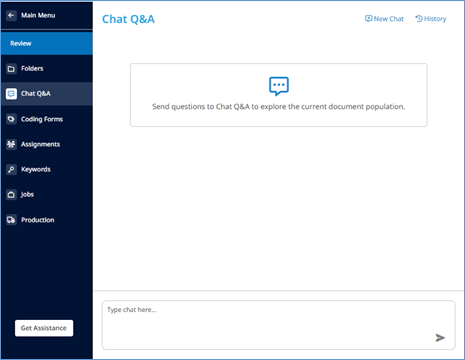
Chat with Chat Q&A
You start by entering a question, Chat Q&A finds the answer within document population, and then responses appear with citations. The following image shows an example of a Chat Q&A response.
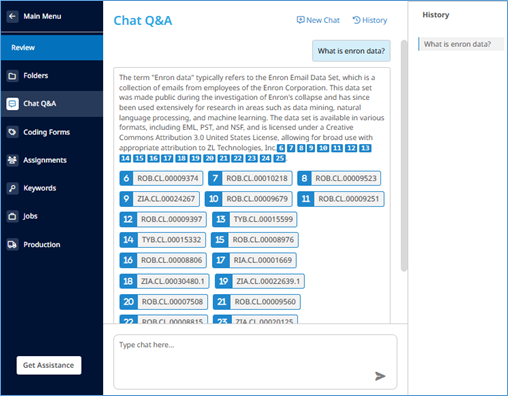
Select a citation to open the document in the Document Viewer. You can also view the chat history by clicking .
Transfer to Relativity update
Added the ability to Connect to Relativity with SSO feature
In Inspect and Review, added the ability to Connect to Relativity with Single Sign-On (SSO) feature. This feature allows you to transfer files to Relativity without manually entering credentials and eliminating redundant login steps.
To use it, in Inspect and Review, select a Relativity Environment and Workspace. When you are a SSO user, the system verifies, and grants access you to transfer files to Relativity. (922350)
To transfer files to relativity using SSO, perform the following procedure.
-
In the Main Menu, select >t or .
-
In the , select the documents to transfer.
-
If you added the documents to a folder, do this by clicking . Then, select the folder that contains the documents to transfer. To include all documents in this folder, select the checkbox above the Document List.
-
-
In the pane, click .

-
In page, perform the following actions.
-
In , choose the Relativity Instance.
-
In , select an existing Relativity workspace from the dropdown.
-
-
Click .
Append All Custodian updates
In Inspect and Review, added the ability to generate an error report when documents transferred to Relativity and not available or deleted in Relativity. This report provides a summary of successful and failed transfers, including detailed reasons for any failures. You can retry failed transfers and download the Failed Transfer Report Summary or the Failed Transfer Report Detail for further analysis.
Also, the system now reflects retry options, and error log entries are created without altering the metadata of failed documents. (938217)
Perform the following procedure to view the report.
-
In the Main Menu, select .
-
Click .
-
If any documents failed to transfer to Relativity, the job page displays a job above the job, where both lines display the same .
-
To view the Failed Post Transfer Report, in the job, click the download
 icon.
icon. -
When the XLSX file appears at the top of the page, select it to view the report in Excel. Alternatively, you can access the file in your Windows Download folder.

Added the ability to search for appended All Custodian documents
Added new search field . Using this field, you can filter the appended All Custodian documents. (940285)
Refer to Search field reference for more information.
Assignment update
Assignment pane update
Added a Refresh  icon to the pane. Click this icon to view the latest updates to assignments. (924094)
Assignment Creation job pop up update
In the page and the page in Review, the job pop up now shows additional information. (924759)
-
. The name you provided when creating the assignment.
-
. If you create an assignment, this shows the total number of documents batched for the assignment. If you update an assignment, this shows the count of additional documents added to the assignment.
-
. If you create an assignment, this shows the total number of batches created for the assignment. If you update an assignment, this shows the number of additional batches created.
Document Actions: Bulk tagging updates
Enhanced the bulk tagging action to allow appending values to Multiple Choice and Long Text fields, and to enable removal of selected values from Multiple Choice fields. You can now perform the following actions when bulk tagging documents.
-
Code a field value.
-
Append values to Multiple Choice or Long Text fields.
-
Remove specific values from Multiple Choice fields.
-
Replace existing values with new values in any field.
-
Clear values from any field.
-
When creating or editing a coding form, if you allow users to add values to a single or multiple choice fields, then you can add values to fields in Bulk Tagging.
To add, append, remove, or replace field values in documents during bulk tagging, refer to Bulk tag documents.
Also, updated the job pop up details in the page in Inspect or Review and the page. The job pop up now shows the following information.
|
Submitted By |
User who submitted the job. |
|
Submitted Time |
Date and time the job was submitted. |
|
Number of Documents |
Number of documents selected during the Bulk Tagging process. |
|
Append |
If you appended values to Multiple Choice or Long Text fields, the pop up displays this with the field name: [field value]. |
|
Replace All |
If you replaced the existing values with new values in any field, the pop up displays this with the field name: [field value]. |
|
Remove |
If you removed specific values from Multiple Choice fields, the pop up displays this with the field name: [field value]. |
|
Clear All |
If you cleared values from any field, the pop up displays this with the field name. |
|
Job Id |
Job identification number. |
(927482, 927490, 927492, 927493, 924560)
Document Actions: Export Fields to CSV update
To alleviate issues when exporting metadata from many documents, the maximum number of documents you can select for metadata export to CSV is now limited to 1,000,000. (946079)
Document Viewer update
Enhanced the speed and performance of document page loading in the Document Viewer. (945416)
OCR update
Added the ability to OCR Turkish language. (952038)
Bugs fixed in Release 4.1
The following bugs were resolved in this version.
|
Number |
Title |
|---|---|
| 559509 | React | Viewer | Changing viewer type in double viewer layout does not refresh Text tab to default |
| 631044 | Highlighting | Custom/global groups run off page when they exceed the pre-allotted box |
|
849941 |
Processing | Authors and Date Modified fields are not extracted for .pptx files (Content type: application/vnd.openxml) |
| 867470 | Angular and React | Project Settings | Adding Highlights causes default Project Settings to change |
|
875850 |
Export | Two workers resulted in Export CSV download/creation failure |
|
900176 |
Inspect/Review | Highlights are not displayed per review settings in text tab (docked and undocked) |
|
907324 |
Angular and React | Search Builder | Inspect/Review | When a user sets up a search builder query against a field associated with the coding form containing a dash or underscore, noticed that the search is providing inaccurate result |
|
908842 |
Search Builder | Search Builder Handling of Fields with " / " |
|
911558 |
Normalized the Message ID field by removing any unnecessary characters (such as < and >) from the beginning or end. |
|
917676 |
Fixed an issue where searching long text fields using 'Is Null' or 'Is NOT Null' returned incorrect results. |
|
929836 |
Data Assessment | Data Assessment with a message that "processing is needed" |
| 937901 | React | Search Builder | Picklist for field does not close upon expanding a picklist for a different field |
| 939964 | Processing | Fragment not working correctly for processing job |
|
940855 |
React | Epiq Internal Feedback | Document view is slow, taking time to display in new mode Epiq Discover |
|
941232 |
Modify Metadata | Custodian does not update properly |
|
941391 |
Angular | Coding Forms | Default fields put on the default coding form do not copy correctly |
|
943449 |
React | Processing | When submitting re-processing job for all the documents, it displays in the job pop-up that only 50 documents have been submitted. |
|
944362 |
React | Search Builder | The full list overlays the Search Builder box but sub options do not, needs to scroll with in the Search Builder box to select the bottom option |
|
944876 |
React | Cannot copy older projects |
|
944996 |
React | Inspect/Review | Folders | Unable to view all the folders and sub folders in the folder pane when we zoom out only folders are getting displayed. |
|
945706 |
Assignments | Batch Name is incorrect when creating new batches within existing assignment |
|
946019 |
Billing | INT199 | Translation billing stats are not getting summed up at project level for a given date range when fetched via /rest/metrics/project/stats |
|
946315 |
React | Inspect/Review | Document grid should show full Processing information text upon hover |
|
946869 |
React | Inspect/Review | Tooltip are missing, column/text without expanding the column to see the text/details |
|
948262 |
Epiq Admin | Unable to remove users from project settings panel |
| 948834 | JavaWorker | Export CSV job is not completing |
|
948835 |
React | Production | Family validation uses current doc list instead of across project |
|
948858 |
React | Coding Forms | Drop down selection is showing users the wrong/not selected coding form |
|
949364 |
Filter | Unable to copy and paste date values to the "Start" and "End" fields in the filter screen |
|
951119 |
React | Filter Template | Unable to 'Save As' new template |
|
951390 |
React | Processing | When submitting re-processing job for all the searched documents, it displays in the job pop-up that only 50 documents have been submitted. |
| 951529 | React | Production | Production fails with error 'No terminal matches '"' in the current parser context' |
|
952015 |
React | Image viewer | Only first page is getting downloaded for loaded Images. |
| 952111 | React | Document fails to load on Initial selection via search builder |
| 953257 | Coding Forms | Additional coding form is created using an Import Project |
| 954350 | React | Encountered an unexpected error when running production |
| 955070 | React | Search Builder | Include Family | Inspect/Review | Noticing when "Include Family" is applied and a search is executed in the console payload for include family is going as FALSE |
| 955912 | React | Users are unable to select projects in the drop-down list under User Login History Report |